
Epicor Kinetic Task Agent Migrator: Process Sets & Schedules (DEV → TEST → PROD)
If you’ve ever tried to promote Process Sets, Process Tasks, and System Agent schedules between environments in Epicor Kinetic, you’ll know the pain: it’s time-consuming, “clicky”, and challenging to audit. A single missed parameter can be enough to cause drift between DEV, TEST, and PROD—and that usually surfaces at the worst possible time.
Recently, we had to migrate around 150 process sets, tasks, and schedules across environments. To avoid manual error and improve implementation quality, I built a small function library I now use as a repeatable migration tool: the Epicor Kinetic Task Agent Migrator. It exports configuration to JSON for review, lets you adjust it safely, and imports it back into the target environment.
Why JSON?
Epicor configuration is powerful, but it isn’t “portable” by default. With this migration tool, moving automation between environments becomes repeatable and reviewable—especially when you need to migrate multiple connected objects:
- Epicor Kinetic Process Sets (definitions/containers)
- Epicor Process Tasks and Task Parameters referenced by those process sets
- Epicor System Agent schedules (plus schedule tasks and parameters)
Exporting these to JSON gives you three big wins:
- Reviewable: You can validate the configuration before importing.
- Diff-friendly: Changes can be compared across versions using standard tools.
- Editable: Bulk schedule/parameter updates are often faster in JSON than through the UI.
What gets exported and imported
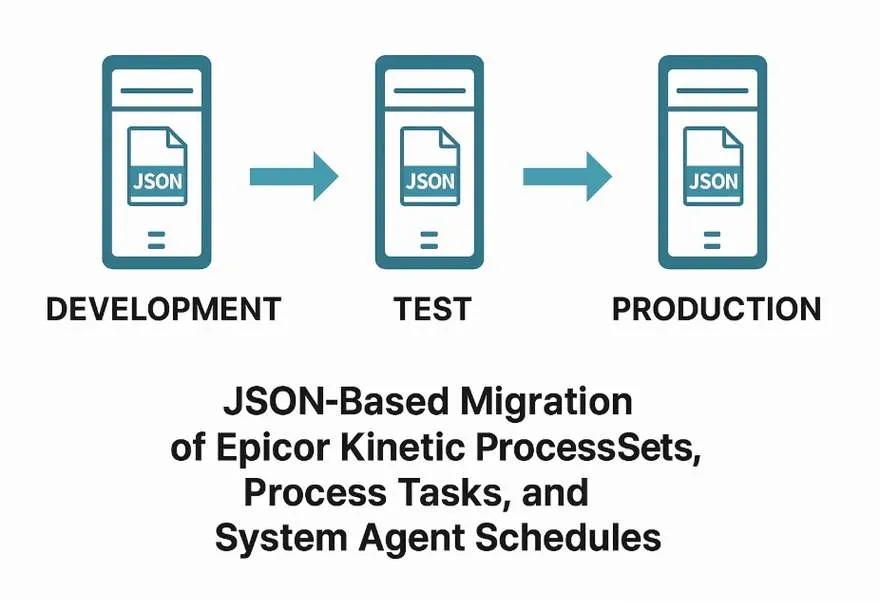
JSON-Based Migration of Epicor Kinetic Configuration
1) Process Sets
The migrator exports Process Sets using ProcessSetSvc.GetRows. Task data is handled separately to keep the Process Set export clean and targeted.
Output: A JSON file written with a _ProcessSet suffix.
2) Process Tasks & parameters
Process Tasks are exported based on the Process IDs referenced by your selected Process Sets. The tool:
- Loads Process Sets using your filter
- Extracts distinct
ProcessIDvalues - Exports
ProcessTaskand matchingProcessTaskParamfor each Process ID
Output: A JSON file written with a _ProcessTask suffix.
3) System Agent schedules, tasks & parameters
System Agent data is exported using SysAgentSvc.GetRows, filtered by schedule criteria, so you can target only what you need. The tool exports schedules, schedule tasks, and parameters together for consistent migration.
Output: A JSON file written with a _SysAgent suffix.
DEV → TEST → PROD workflow
Here’s the practical flow the Epicor Kinetic Task Agent Migrator is designed to support.
Step 1: Build and validate in DEV
- Create or update your Epicor Kinetic Process Set(s)
- Configure Epicor Process Tasks and Task Parameters
- Run the process end-to-end in DEV to confirm behaviour
Step 2: Export
- Export Process Sets →
..._ProcessSet.json - Export Process Tasks →
..._ProcessTask.json - Export System Agent schedules (if required) →
..._SysAgent.json
Step 3: Import into TEST
Imports support a “create or update” approach. If you’re promoting changes, enable the update option so TEST stays aligned with DEV.
- Import Process Sets from
..._ProcessSet.json - Import Process Tasks from
..._ProcessTask.json - Import System Agent data from
..._SysAgent.json
After importing, validate outcomes using TEST data, confirm outputs, and verify schedules and parameters appear correct.
Step 4: Promote into PROD
Once TEST is signed off, run the same imports in PROD. For go-live safety, it’s common to stop on the first error to avoid partial state changes.
Bulk-edit schedules (export → edit → import)
Schedules are a perfect example of where JSON export/import makes life easier. Instead of manually opening each schedule, you can:
- Export the relevant Epicor System Agent schedules to JSON
- Edit values in JSON (times, enabled flags, parameters, recipients, etc.)
- Import the JSON back in to apply updates consistently
Technically, the import also addresses a key challenge in Epicor: schedule numbers can vary across different environments. The migration tool remaps schedule identifiers during import and re-links tasks and parameters, ensuring everything remains connected.
Safety note: Weekly schedules can be handled cautiously during import to reduce the chance of unintended runs after deployment. Review and confirm schedule settings in the target environment.
Error handling & troubleshooting
When something goes wrong, the tool writes a .log file next to the JSON input. This makes it easier to diagnose issues without having to dig through UI messages.
Why does this help in multi-company deployments
This approach is handy when you need to standardise automation across multiple companies—such as payment runs, reporting tasks, statement runs, or integrations. Exporting a known-good configuration, adjusting a small set of company-specific parameters, and importing it back in is often the fastest way to deliver consistent outcomes with less risk.
Next steps (and related JPGAL content)
If you’re planning a Kinetic rollout, troubleshooting schedule drift, or you want to standardise automation across companies, we can help.
- Contact JPGAL to discuss Epicor Kinetic automation and migrations
- Browse more JPGAL ERP articles
- View our Epicor services
- JSON format reference (Wikipedia)
- Application lifecycle management (ALM): moving configuration between environments (Microsoft)